How to Edit an Uneditable PDF: Complete 2025 Guide
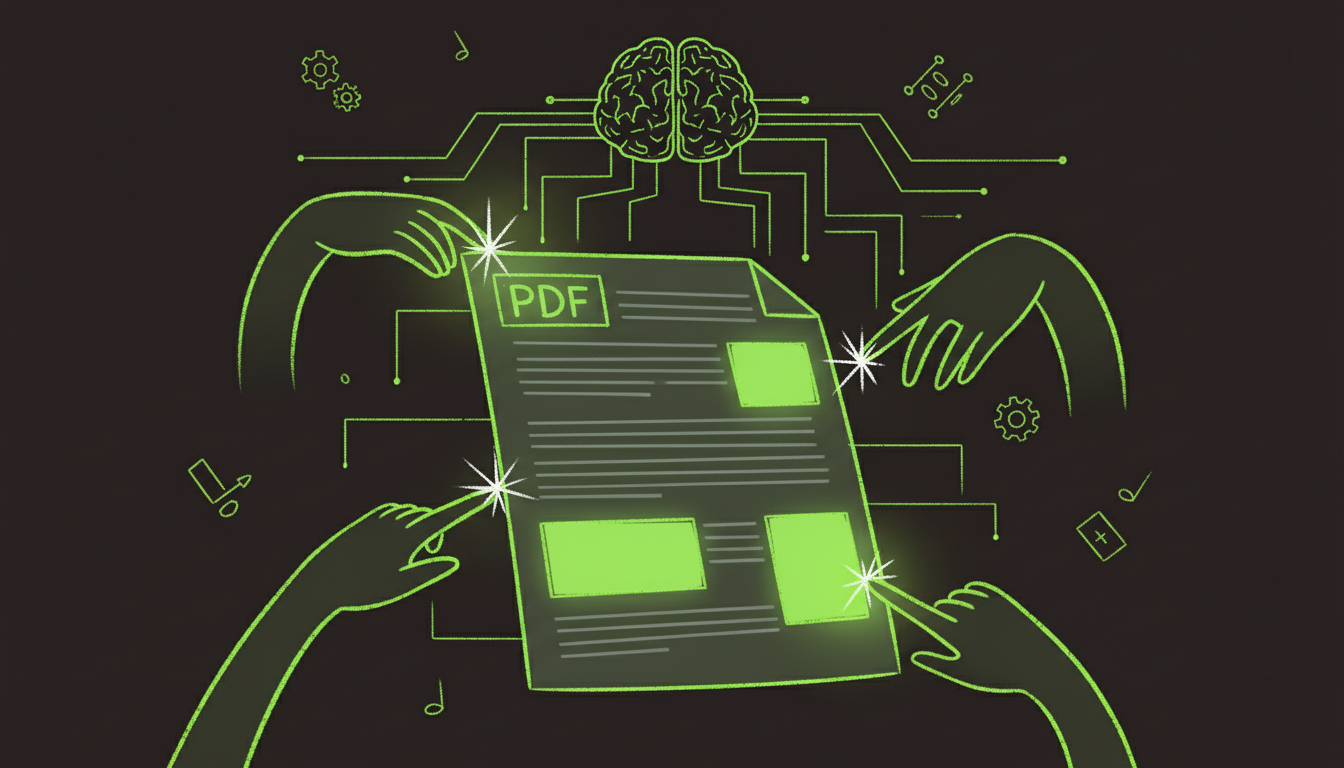
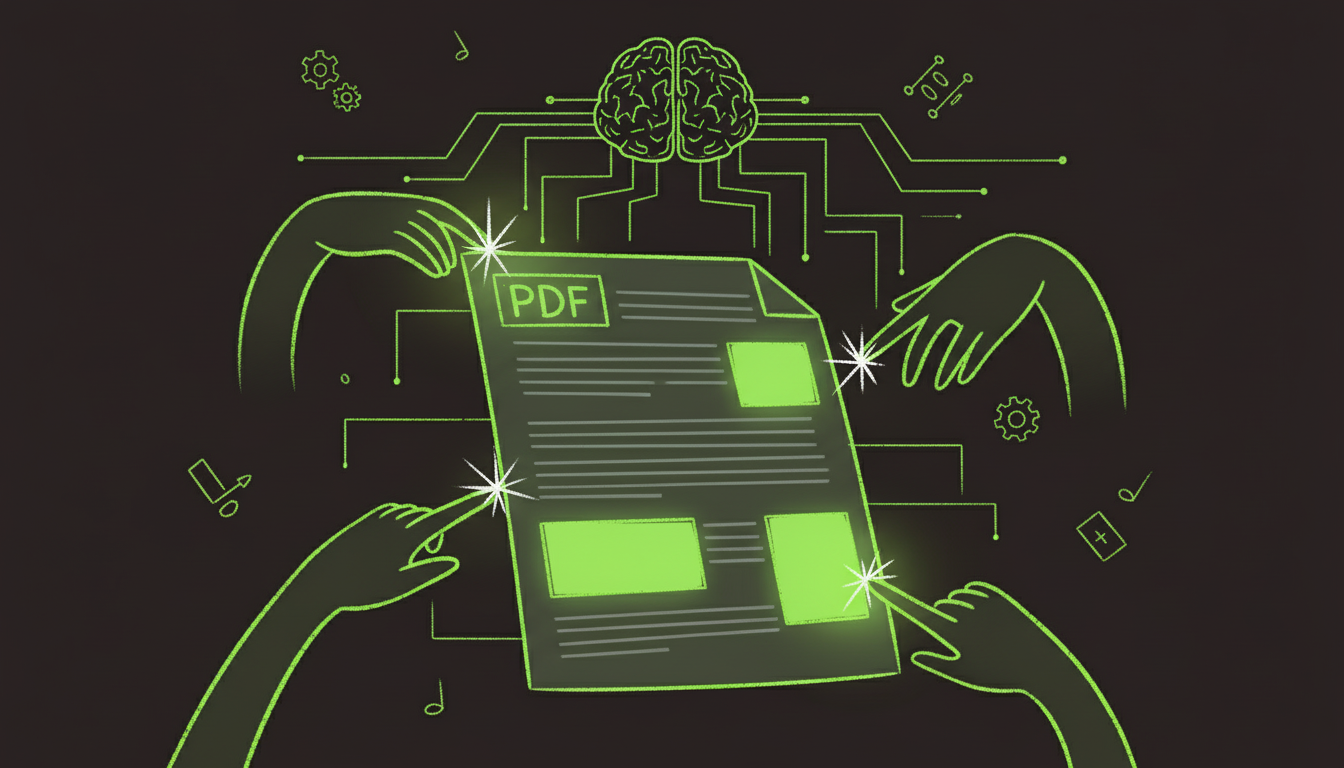
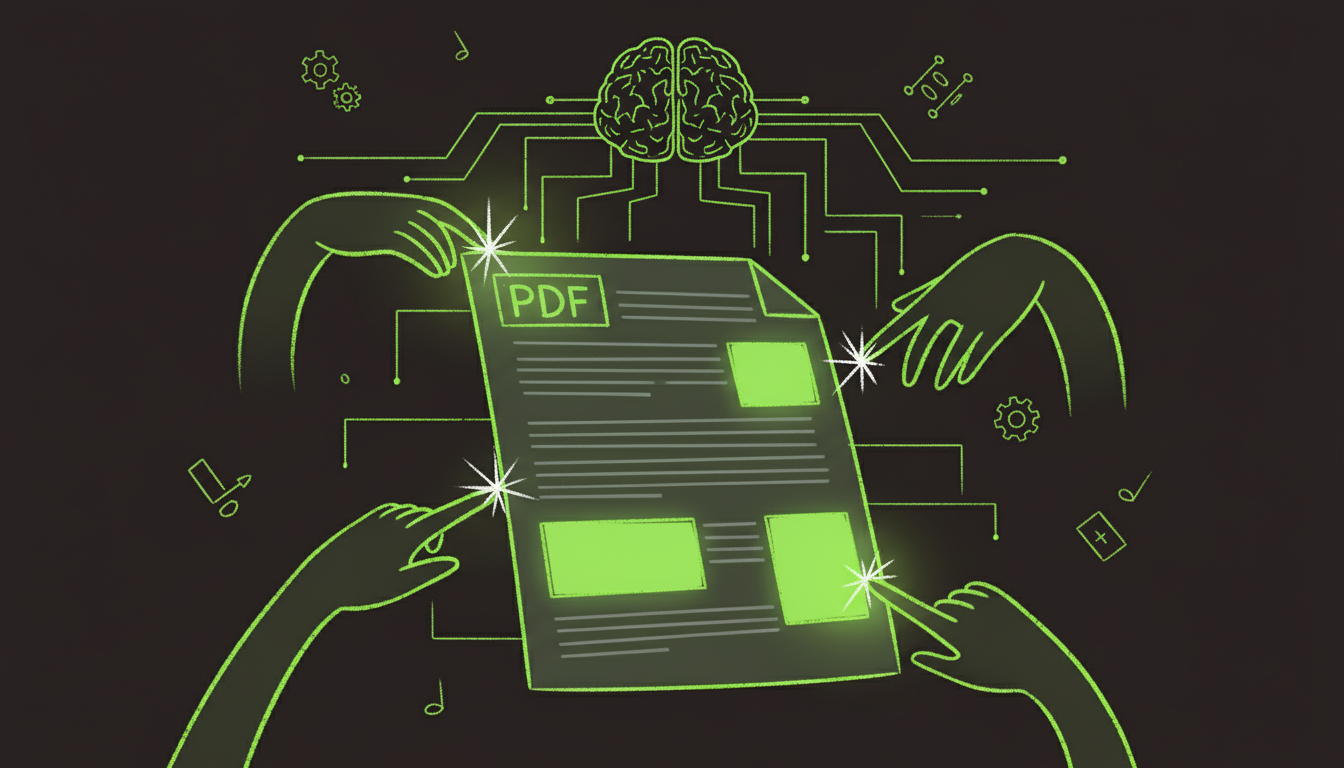
Encountering a PDF you can't edit is frustrating. Whether it's password-protected, locked, or just formatted in a way that prevents editing, there are legitimate ways to modify these documents.
I've helped hundreds of users unlock and edit restricted PDFs over the past year. The methods vary depending on the type of restriction, but solutions exist for almost every scenario.
Understanding PDF Restrictions
┌─────────────────────────────────────────┐
│         PDF Restriction Types           │
├─────────────────────────────────────────┤
│                                         │
│  1. Password Protection                 │
│     └─> Requires password to open/edit  │
│                                         │
│  2. Permission Restrictions             │
│     └─> Editing disabled, no password   │
│                                         │
│  3. Scanned/Image-Based                 │
│     └─> No text layer, just images      │
│                                         │
│  4. Formatted as Image                  │
│     └─> Text converted to graphics      │
└─────────────────────────────────────────┘
Method 1: Remove Password Protection (If You Have Password)
If you know the password but the PDF is still locked, removing protection is straightforward.
Using Adobe Acrobat Pro
1. Open PDF in Acrobat Pro
2. Go to Tools > Protect > Encrypt > Remove Security
3. Enter password when prompted
4. Save document
5. PDF is now fully editable
Using Free Online Tools
PDF24:
- Upload protected PDF
- Enter password
- Click "Remove Protection"
- Download unlocked PDF
SmallPDF:
- Upload PDF
- Enter password
- Unlock and download
Time: 1-2 minutes
Method 2: Convert, Edit, Convert Back
When you can't remove protection, convert the PDF to an editable format, make changes, then convert back.
PDF → Word → PDF Workflow
┌──────────┐      ┌──────────┐      ┌──────────┐      ┌──────────┐
│ Locked   │ ───> │   Word   │ ───> │  Edit    │ ───> │   New    │
│   PDF    │      │ Document │      │ Content  │      │   PDF    │
└──────────┘      └──────────┘      └──────────┘      └──────────┘
  2 min             1 min             5-30 min           2 min
Step-by-Step Process
Step 1: Convert to Word
- Use Adobe Acrobat (File > Export To > Word)
- Or online converters (SmallPDF, ILovePDF)
- Or Google Docs (Upload > Open with Google Docs)
Step 2: Edit in Word
- Make all necessary changes
- Format as needed
- Review carefully
Step 3: Convert Back to PDF
- Word: File > Save As > PDF
- Google Docs: File > Download > PDF
- Online converters
Pros:
- Works with any PDF
- Full editing capabilities
- Free options available
Cons:
- Formatting may change
- Takes longer
- May lose some elements
Method 3: OCR for Scanned PDFs
If your PDF is scanned (image-based), use OCR to extract text first.
OCR Process Flow
┌──────────────┐      ┌──────────────┐      ┌──────────────┐
│  Scanned     │ ───> │     OCR      │ ───> │  Editable    │
│     PDF      │      │  Processing  │      │     Text     │
└──────────────┘      └──────────────┘      └──────────────┘
OCR Tools Comparison
| Tool | Accuracy | Speed | Cost |
|---|---|---|---|
| Adobe Acrobat Pro | 95-98% | Fast | Paid |
| Tesseract OCR | 85-92% | Medium | Free |
| Google Drive OCR | 90-95% | Fast | Free |
| Online OCR | 80-90% | Slow | Free/Paid |
Using Google Drive (Free)
- Upload PDF to Google Drive
- Right-click > Open with > Google Docs
- Google automatically runs OCR
- Edit the extracted text
- Download as PDF
Best For: Quick edits, free solution, good accuracy
Method 4: AI-Powered Editing (No Password Needed)
Modern AI tools can add editable elements to protected PDFs without removing protection.
How AI Editing Works
Protected PDF → AI Analysis → Add Editable Fields → New PDF with Fields
     ↓              ↓                ↓                    ↓
  Upload        3 seconds        2 seconds           Download
What AI Can Do:
- Add form fields to locked PDFs
- Insert text annotations
- Add signature fields
- Create fillable versions
What AI Can't Do:
- Remove password protection
- Edit existing locked text
- Bypass security restrictions
Using AutoFillPDF
- Upload protected PDF
- AI detects where fields should go
- Adds editable form fields
- Download new fillable version
Use Case: Need to fill out a locked form but can't edit the original text
Method 5: Print to PDF (Workaround)
For simple text additions, use the print method.
Process
1. Open locked PDF
2. Print to PDF (Ctrl/Cmd + P)
3. Select "Save as PDF" as printer
4. New PDF may have fewer restrictions
5. Edit in PDF editor
Limitations:
- Doesn't always work
- May lose formatting
- Not reliable for all PDFs
Legal Considerations
When Editing is Legal
✅ You own the PDF ✅ You have written permission ✅ PDF is in public domain ✅ Editing for accessibility ✅ Personal use of your own documents
When Editing May Be Illegal
❌ Bypassing security without authorization ❌ Modifying copyrighted content ❌ Removing watermarks/copyright notices ❌ Editing legal documents without permission ❌ Circumventing DRM protection
Always: Verify you have legal right to edit before proceeding
Tool Comparison Matrix
| Method | Free | Speed | Quality | Best For |
|---|---|---|---|---|
| Password Removal | ✅ | ⚡⚡⚡ | ⭐⭐⭐⭐⭐ | Known password |
| Convert & Edit | ✅ | ⚡⚡ | ⭐⭐⭐⭐ | Full editing |
| OCR | ✅ | ⚡⚡ | ⭐⭐⭐ | Scanned PDFs |
| AI Tools | ⚠️ | ⚡⚡⚡ | ⭐⭐⭐⭐ | Adding fields |
| Adobe Acrobat | ❌ | ⚡⚡⚡ | ⭐⭐⭐⭐⭐ | Professional |
Troubleshooting Common Issues
Problem: Password removal tool says "incorrect password" Solution: Verify you have the right password. Some PDFs have separate passwords for opening vs. editing.
Problem: Converted PDF looks different Solution: This is normal. Complex layouts may not convert perfectly. Use professional tools for better results.
Problem: OCR accuracy is low Solution: Ensure original scan is high quality (300+ DPI), good contrast, and clear text.
Problem: Can't edit specific elements Solution: Some elements may be embedded images. Extract images separately, edit, then reinsert.
Best Practices
Before Editing
- Backup Original: Always keep a copy of the original PDF
- Verify Authorization: Ensure you have legal right to edit
- Check Restrictions: Understand what's locked and why
- Choose Right Tool: Match tool to your specific needs
During Editing
- Preserve Formatting: Maintain original layout when possible
- Test Compatibility: Ensure edited PDF works in common viewers
- Review Changes: Double-check all modifications
- Save Versions: Keep track of different versions
After Editing
- Verify Functionality: Test all interactive elements
- Check File Size: Ensure reasonable file size
- Validate Security: Re-apply protection if needed
- Document Changes: Note what was modified
Real-World Scenarios
Scenario 1: Locked Form Needs Updates
Situation: Company form is locked, need to update contact info
Solution:
- Use password if available
- Or convert to Word, edit, convert back
- Or use AI to add new editable fields
Time: 5-15 minutes
Scenario 2: Scanned Document Needs Text Changes
Situation: Old scanned PDF needs text corrections
Solution:
- Run OCR to extract text
- Edit in Word/Google Docs
- Convert back to PDF
- Merge with original images if needed
Time: 10-20 minutes
Scenario 3: Protected PDF, No Password
Situation: Received protected PDF, need to fill it out
Solution:
- Use AI tool to add form fields
- Fill out the new fields
- Submit completed form
Time: 2-5 minutes
Advanced Techniques
Removing Restrictions Programmatically
For developers, PDF manipulation libraries can remove restrictions:
Python (PyPDF2):
from PyPDF2 import PdfReader, PdfWriter

reader = PdfReader("locked.pdf")
writer = PdfWriter()

for page in reader.pages:
    writer.add_page(page)

writer.encrypt("", "")  # Remove encryption
with open("unlocked.pdf", "wb") as f:
    writer.write(f)
Note: Only works if you have the password or restrictions aren't encrypted.
Conclusion
Editing uneditable PDFs is possible with the right tools and methods. The approach depends on the type of restriction and your specific needs.
For password-protected PDFs where you have the password, removal tools work instantly. For locked PDFs, conversion methods provide full editing capabilities. For scanned documents, OCR extracts text for editing. And for adding functionality, AI tools can enhance PDFs without removing protection.
Remember to always verify you have legal authorization to edit PDFs, especially protected or copyrighted documents. When in doubt, contact the document owner for permission.
Ready to edit your PDF? Start with the method that matches your situation, and you'll have an editable document in minutes.